 Assignment Tracker
See at a glance which Canvas assignments still need your attention
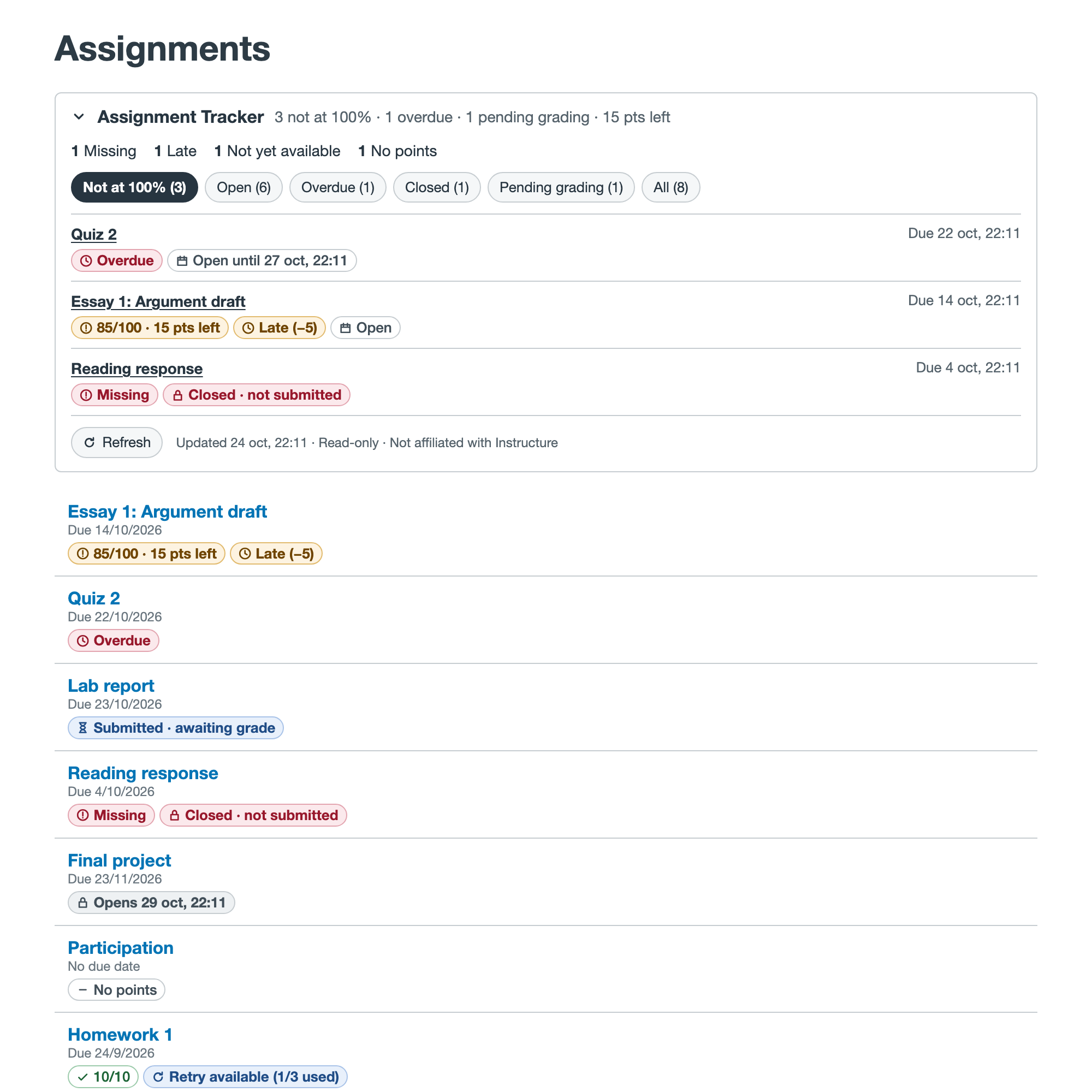
A free, open-source browser extension for students. It marks every assignment on your course's Assignments page with its score, points left, and whether it's open, overdue, or closed.
For Chrome, Edge, Brave and Firefox. Coming soon to the Chrome Web Store and Firefox Add-ons.
What it shows
-
Points you're missing
"85/100 · 15 pts left" on each graded assignment, plus a total across the course.
-
What's open, overdue, or closed
Overdue and Missing work stands out; closed and not-yet-available assignments are labeled.
-
What's waiting on your teacher
Submitted but not graded yet, or graded but not posted.
-
Filters in one place
A collapsible panel: Not at 100%, Open, Overdue, Closed, Pending grading.
Badges you'll see
- 85/100 · 15 pts left
- Due in 2 days
- Overdue
- Missing
- Late (−5)
- Closed
- Opens Nov 3
- Submitted · awaiting grade
- Grade not posted
- Excused
- No points
- Retry available (1/3 used)
Every badge uses text and an icon, not just color, and has a screen-reader description. Works with dark pages and high-contrast modes.
Private by design
-
Nothing leaves your browser
No analytics, no tracking, no ads, no servers of ours. There is nowhere for your data to go.
-
No passwords or tokens
It reads from the Canvas site you're already logged in to, the same way the page itself does.
-
Read-only
It can't submit, edit, or delete anything in Canvas. It only reads.
-
Open source
MIT-licensed. Anyone can check exactly what it does.
Install
Store listings are on the way. Until then, download the ready-to-use package from GitHub. It takes about a minute and needs nothing else installed.
Chrome, Edge, Brave
-
On the release page, under Assets, download
assignment-tracker-chrome-version.zip. - Unzip it and move the folder somewhere permanent (for example, your Documents folder). Don't delete it later: the browser loads the extension from that folder.
-
Open
chrome://extensions(Edge:edge://extensions, Brave:brave://extensions) and turn on Developer mode. -
Click Load unpacked and select the unzipped folder, the one that contains
manifest.json. - Optional: click the puzzle-piece icon in the toolbar and pin Assignment Tracker.
Chrome may show a notice about developer-mode extensions; that's normal for extensions installed outside the Chrome Web Store.
Firefox (140+)
- Download
assignment-tracker-firefox-version.zipfrom the release page. - Open
about:debugging#/runtime/this-firefox. - Click Load Temporary Add-on… and choose the downloaded zip file.
Firefox removes temporary add-ons when it restarts, so you'll need to repeat this until the Firefox Add-ons listing is available.
Updating
Download the new release, replace the contents of your folder with the new files, then click the
reload icon (↻) on the extension in chrome://extensions.
Build it from source instead
Requires Node.js 22 or newer and git:
git clone https://github.com/davidmenendez9901/assignment-tracker-for-canvas.git
cd assignment-tracker-for-canvas
npm install
npm run build
Then load the dist/chrome folder (or dist/firefox/manifest.json) as described above.
Your school uses its own Canvas address?
It works automatically on addresses ending in instructure.com. For others (like
canvas.myuniversity.edu): open your Canvas, click the extension icon, choose
Enable on this site, then Allow. Access is granted only to that one site.
Questions
Is this made by Instructure or my school?
No. It's an independent open-source project. It is not affiliated with, endorsed by, or sponsored by Instructure, Inc. or any school.
Can my school see that I use it?
The extension reads your assignments through Canvas's normal API, the same kind of requests the Canvas page itself makes. Like any Canvas activity, those requests may appear in your school's Canvas logs. The extension doesn't change anything in Canvas.
Is the information always correct?
It shows what Canvas reports, but it can be wrong or out of date (for example, if your teacher grades offline or changes dates). Canvas is the official source. Always check deadlines and grades there. See the Terms of Use.
Does it work for teachers?
No. It's designed for students. Teachers and observers see a short note instead of badges.
Why does it need permissions?
To run on Canvas course pages (*.instructure.com), and, only if you choose, on your school's
own Canvas address. Each permission is explained in the privacy policy.
Something doesn't look right. Where do I report it?
Open an issue on GitHub. Please don't include your name, grades, or course names.